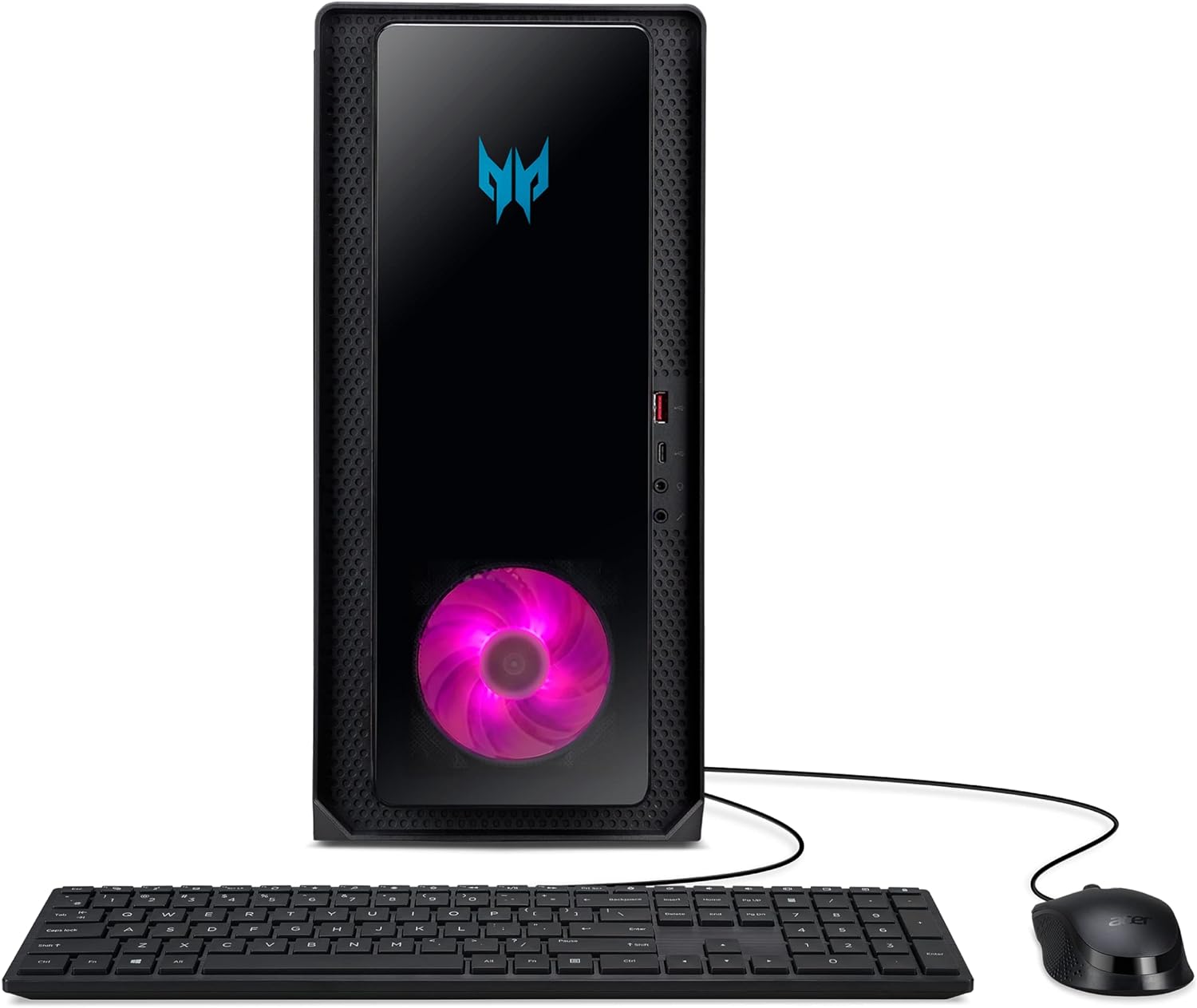
Acer Predator Orion 3000 PO3-650-UR17 Gaming Desktop Launched in the US
In the realm of gaming, the quest for the ultimate machine is never-ending. Acer's latest offering, the Predator Orion 3000 PO3-650-UR17 ( DG.E38AA.006 ), is a testament to the company's commitment to providing gamers with powerful, cutting-edge technology that pushes the boundaries of what's possible. Priced at $1,699.99 on Amazon US, this gaming desktop is designed to cater to the most demanding gamers and professionals alike.
Core Performance
At the heart of the Predator Orion 3000 PO3-650-UR17 ( DG.E38AA.006 ) lies the 13th Generation Intel Core i7-13700F 16-Core Processor, capable of reaching up to 5.2GHz with Turbo Boost Technology. This high-performance CPU ensures that even the most CPU-intensive tasks run smoothly, without any lag or stuttering. Whether you're gaming at high resolutions, streaming your gameplay, or working on CPU-heavy applications, the i7-13700F is more than capable of handling it all.
Graphics and Visuals
Acer has equipped Predator Orion 3000 PO3-650-UR17 ( DG.E38AA.006 ) with the NVIDIA GeForce RTX 4070 graphics card, featuring 12GB of GDDR6X video memory. This card not only offers exceptional gaming performance but also supports real-time ray tracing and AI-enhanced graphics. With 3 x Display Ports 1.4a and 1 x HDMI 2.1 Port, connecting multiple displays for an immersive gaming setup or productive multitasking environment is effortless.
Memory and Storage
The system comes with 16GB of DDR5-4400 memory, which is expandable to 64GB, offering ample bandwidth for even the most memory-intensive applications. Storage is handled by a 1TB PCIe NVMe Gen 4 SSD, ensuring fast boot times, quick application launches, and plenty of space for your games, applications, and media.
Connectivity and Expansion
Wireless connectivity is top-notch, thanks to Intel Wireless Wi-Fi 6E AX211 (Gig+), which supports dual-stream Wi-Fi in the 2.4GHz, 5GHz, and 6GHz bands, including UL MU-MIMO for faster and more reliable internet connections. The Killer Ethernet E2600 provides a robust wired connection for gaming without lag.
For peripherals and external devices, the Predator Orion 3000 is well-equipped with a variety of ports: 1 - USB 3.2 (Type C) Gen 2x2 port (Up to 20Gbps) (Front), 1 - USB 3.2 Gen2 10Gbps Ports (Front), 2 - USB 3.2 Gen1 5Gbps Port (Rear), 4 - USB 2.0 480Mbps Ports (Rear), 2 - Audio Jacks (Front), 3 - Audio Jacks (Rear), and 1 - RJ-45 Ethernet Port.
Audio and Software
DTS X: Ultra Audio enhances your gaming and entertainment experience with high-fidelity, spatially accurate sound. Coupled with Windows 11 Home, the system offers a modern, efficient, and secure computing environment, optimized for gaming and productivity.
Conclusion
The Acer Predator Orion 3000 PO3-650-UR17 ( DG.E38AA.006 ) is a powerhouse designed for gamers who demand the best. With its formidable CPU and GPU combo, extensive connectivity options, and room for expansion, it's built to offer an exceptional gaming experience today and into the future. Whether you're gaming, streaming, or working on demanding projects, the Predator Orion 3000 has you covered.
Specifications
- Processor: 13th Generation Intel Core i7-13700F 16-Core Processor with speeds up to 5.2GHz
- Graphics Card: NVIDIA GeForce RTX 4070 with 12GB of GDDR6X Video Memory
- Memory: 16GB DDR5-4400 Memory, expandable up to 64GB
- Storage: 1TB PCIe NVMe Gen 4 Solid State Drive (SSD)
- Wireless Connectivity: Intel Wi-Fi 6E AX211 (Gig+) supports dual-stream Wi-Fi in the 2.4GHz, 5GHz, and 6GHz bands, including UL MU-MIMO
- Wired Connectivity: Killer Ethernet E2600
- Front ports: 1 x USB 3.2 (Type C) Gen 2x2 port (Up to 20Gbps), 1 x USB 3.2 Gen2 10Gbps Port
- Rear ports: 2 x USB 3.2 Gen1 5Gbps Ports, 4 x USB 2.0 480Mbps Ports, 1 x RJ-45 Ethernet Port
- Audio: 2 x Audio Jacks (Front), 3 x Audio Jacks (Rear)
- Video Outputs: 3 x Display Ports 1.4a & 1 x HDMI 2.1 Port
- Audio: DTS X: Ultra Audio
- Operating System: Windows 11 Home