Qualcomm Launches Snapdragon 865 and 765 Series of 5G Chipsets
Qualcomm has officially announced the flagship 5G chipset for the year 2020 - Snapdragon 865. They have also announced a mid-range chipset with 5G built-in - Snapdragon 765 / 765G. Both these chipsets will be available on almost all 2020 flagship and mid-range Smartphones ( except Samsung's and Huawei's ).

Bin Lin - Xiaomi's co-founder and vice chairman has officially announced their next flagship Mi 10 will be one of the first smartphones to use this new Snapdragon 865 processor. Sergio Buniac, the President of Motorola has also talked about using these new chipsets on their future 5G smartphones from both Motorola and Lenovo. Alen Wu of Oppo was also there at the Snapdragon Tech Summit announcing Oppo's next flagship will feature Snapdragon 865 5G chipset. Nokia meanwhile has announced they will be using Snapdragon 765 5G chipsets to bring out affordable mid-range 5G smartphones to the market.
Qualcomm has also announced world's largest fingerprint sensor - 3D Sonic Max - at the Snapdragon Summit.
Snapdragon 865 do not come with an integrated 5G modem. So the phone manufacturers have to use a seperate modem to provide 5G support - Snapdragon X55 Modem-RF System.
Snapdragon 765 on the other hand comes with a integrated 5G modem. According to the Verge , Qualcomm has confirmed manufacturers will not be able to use Snapdragon 865 without the 5G modem on their 4G smartphones.
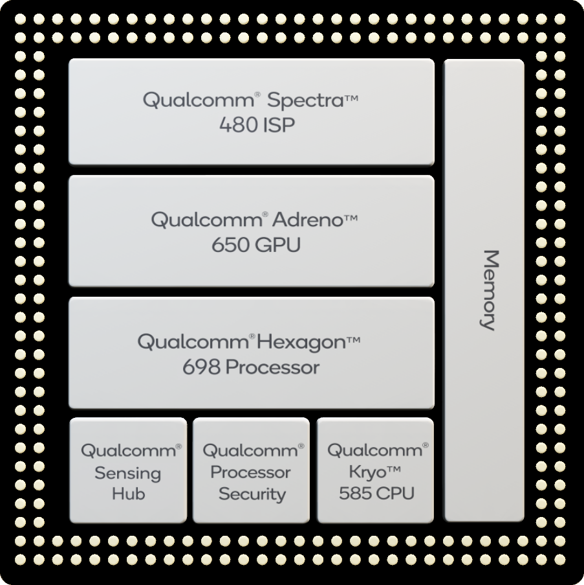
SD865 : Qualcomm Spectra 480 ISP, Adreno 650 GPU, Qualcomm Hexagon 698 processor, Sensing Hub, Processor Security, Qualcomm Kryo 585 CPU, Memory.
SD765 : Qualcomm Spectra 355 ISP, Adreno 620 GPU, Qualcomm Hexagon 696 processor, Sensing Hub, Processor Security, Qualcomm Kryo 475 CPU, Memory.
Snapdragon 865 Features


Bin Lin - Xiaomi's co-founder and vice chairman has officially announced their next flagship Mi 10 will be one of the first smartphones to use this new Snapdragon 865 processor. Sergio Buniac, the President of Motorola has also talked about using these new chipsets on their future 5G smartphones from both Motorola and Lenovo. Alen Wu of Oppo was also there at the Snapdragon Tech Summit announcing Oppo's next flagship will feature Snapdragon 865 5G chipset. Nokia meanwhile has announced they will be using Snapdragon 765 5G chipsets to bring out affordable mid-range 5G smartphones to the market.
Qualcomm has also announced world's largest fingerprint sensor - 3D Sonic Max - at the Snapdragon Summit.
Snapdragon 865 do not come with an integrated 5G modem. So the phone manufacturers have to use a seperate modem to provide 5G support - Snapdragon X55 Modem-RF System.
Snapdragon 765 on the other hand comes with a integrated 5G modem. According to the Verge , Qualcomm has confirmed manufacturers will not be able to use Snapdragon 865 without the 5G modem on their 4G smartphones.
SD865 : Qualcomm Spectra 480 ISP, Adreno 650 GPU, Qualcomm Hexagon 698 processor, Sensing Hub, Processor Security, Qualcomm Kryo 585 CPU, Memory.
SD765 : Qualcomm Spectra 355 ISP, Adreno 620 GPU, Qualcomm Hexagon 696 processor, Sensing Hub, Processor Security, Qualcomm Kryo 475 CPU, Memory.
Snapdragon 865 Features
- 8K @ 30fps support
- 2 Gigapixels per second ISP
- up to 200MP camera supported
- 25% increase in GPU graphics performance ( Adreno 650 GPU )
Source : Qualcomm

