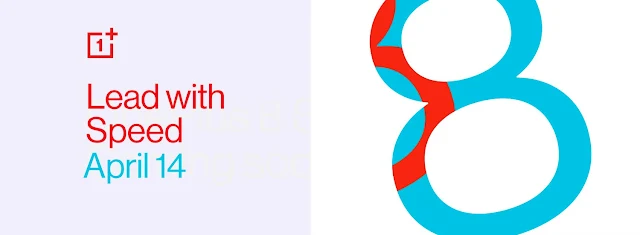
OnePlus 8 Series - OnePlus 8 / OnePlus 8 Pro and OnePlus Z - will be officially unveiled in India and Worldwide on April 14th. Amazon.in has already put up a promo banner with the tagline "Lead with Speed". It will be available to pre-order after the launch event, however, there is every chance you won't get the device shipped in April due to the country-wide lockdown in India.
If you are wondering what OnePlus Z is, it is a mid-range smartphone like the old OnePlus X. This is just a rumor and I think OnePlus would launch this at a later date than along with OnePlus 8 Series.
Pre-order Link here.
OnePlus 8 Specs
Snapdragon 865
5G support
120Hz AMOLED display
30W+ Fast Charging
IP68 Water and Dust Resistant
48MP / 64MP main camera
Ultra wide-angle + Telephoto cameras
Android 10 / Oxygen OS
LPDDR5 8GB / 12GB ram
UFS 3.0 128GB / 256GB storage
Expected OnePlus 8 Price in India: According to reports online, Snapdragon 865 is a bit costlier that many smartphone manufacturers like LG, Google, etc are planning to get less expensive Snapdragon 765G 5G chipset for their flagship phones. So if that's the case, Snapdragon 865 powered OnePlus 8 base model will be priced around Rs 40,000 in India.
OnePlus 8 and 8 Pro will come with Qualcomm Snapdragon 865 Octacore processors. This chipset is the successor of Snapdragon 855+ seen on the older OnePlus 7T Series. SD865 comes with a separate 5G model, which in India would be of no use as we are yet to have any 5G network up. A post on the OnePlus Forum has already confirmed these flagship phones will ship with 120Hz AMOLED display, UFS 3.0 storage, and LPDDR5 ram memory.
UFS 3.0 storage is nothing new, but OnePlus has added a few extra features along with it - Turbo Write and Host Performance Booster. You can get read and write speeds around 1,700MB/s with this storage. OnePlus has a dedicated FSE Team ( Fast, Smooth, Efficient ) setup in 2016 that focuses on System optimizations to bring Fast, Smooth and Efficient output out of their phones.
The launch event would be an online event and will be streamed at https://www.oneplus.in/launch
If you are wondering what OnePlus Z is, it is a mid-range smartphone like the old OnePlus X. This is just a rumor and I think OnePlus would launch this at a later date than along with OnePlus 8 Series.
Pre-order Link here.
OnePlus 8 Specs
Snapdragon 865
5G support
120Hz AMOLED display
30W+ Fast Charging
IP68 Water and Dust Resistant
48MP / 64MP main camera
Ultra wide-angle + Telephoto cameras
Android 10 / Oxygen OS
LPDDR5 8GB / 12GB ram
UFS 3.0 128GB / 256GB storage
Expected OnePlus 8 Price in India: According to reports online, Snapdragon 865 is a bit costlier that many smartphone manufacturers like LG, Google, etc are planning to get less expensive Snapdragon 765G 5G chipset for their flagship phones. So if that's the case, Snapdragon 865 powered OnePlus 8 base model will be priced around Rs 40,000 in India.
OnePlus 8 and 8 Pro will come with Qualcomm Snapdragon 865 Octacore processors. This chipset is the successor of Snapdragon 855+ seen on the older OnePlus 7T Series. SD865 comes with a separate 5G model, which in India would be of no use as we are yet to have any 5G network up. A post on the OnePlus Forum has already confirmed these flagship phones will ship with 120Hz AMOLED display, UFS 3.0 storage, and LPDDR5 ram memory.
UFS 3.0 storage is nothing new, but OnePlus has added a few extra features along with it - Turbo Write and Host Performance Booster. You can get read and write speeds around 1,700MB/s with this storage. OnePlus has a dedicated FSE Team ( Fast, Smooth, Efficient ) setup in 2016 that focuses on System optimizations to bring Fast, Smooth and Efficient output out of their phones.
The launch event would be an online event and will be streamed at https://www.oneplus.in/launch

Comments
Post a Comment