GoPro Max CHDHZ-201-RW 360 Launched in India
GoPro Max CHDHZ-201-RW - GoPro's 360 degree Video and Photo Camera is now available to purchase in India online on Amazon. It is priced at Rs 47,000 MRP. Older, regular Action Cameras GoPro Hero 7 Series are on offer currently online as well ( check here ). Newer GoPro Hero 8 Series will be available soon in India.
Check out GoPro Max Lowest Price on Amazon.in here
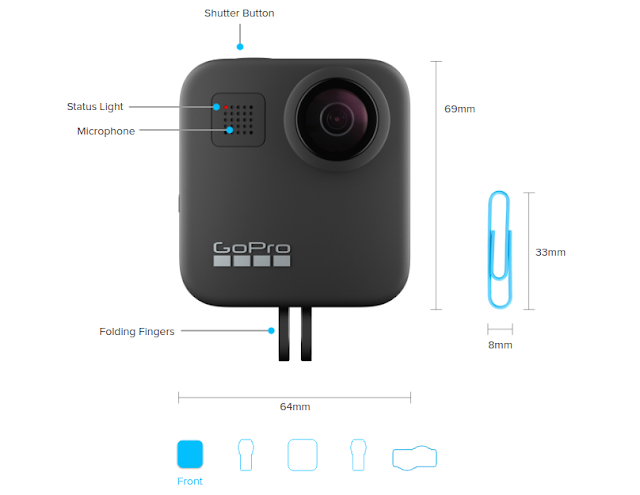
GoPro Max CHDHZ-201-RW Specs and Features
There are two lenses on the Max. You can either shoot a regular 180 degree video or choose to use both lenses to go full 360 degree. If you are into photography, this will let you shoot spherical 360 photos with ease.
GoPro Max Hypersmooth ensures very smooth and shake free videos. There are a lot of creative timelpase modes as well built in to get the Max out of the Max.
From the Manufacturer : Max. Maximum. Wow. Packing Max HyperSmooth, Max TimeWarp, Max SuperView—plus a single-lens HERO and dual-lens 360 camera—MAX, maxes out the radness. Shoot single-lens HERO-style video with unbreakable stabilization or capture immersive 360 footage. Vlog to the max with shotgun-mic performance and a front-facing screen.
Check out GoPro Max Lowest Price on Amazon.in here

GoPro Max CHDHZ-201-RW Specs and Features
There are two lenses on the Max. You can either shoot a regular 180 degree video or choose to use both lenses to go full 360 degree. If you are into photography, this will let you shoot spherical 360 photos with ease.
GoPro Max Hypersmooth ensures very smooth and shake free videos. There are a lot of creative timelpase modes as well built in to get the Max out of the Max.
From the Manufacturer : Max. Maximum. Wow. Packing Max HyperSmooth, Max TimeWarp, Max SuperView—plus a single-lens HERO and dual-lens 360 camera—MAX, maxes out the radness. Shoot single-lens HERO-style video with unbreakable stabilization or capture immersive 360 footage. Vlog to the max with shotgun-mic performance and a front-facing screen.
- GP1 Chip
- Normal GoPro Wide angle capture + 360 degree Capture
- Max Hypersmooth Video Stabilization
- Premium 360 + Stereo Audio
- Max Timewarp
- Touch screen support
- Voice control support
- 1080P live streaming support
- Waterproof to 16ft ( 5m )
- Protune Support
- 2x Slow mo
- 1600mAh battery
- Wi-Fi + Bluetooth Connectivity
- GPS Enabled
- GoPro App support for extra features and remote shooting
- Video recording formats supported : 360 Video: 6K Source / 5.6K Stitched; Normal HERO Video: 1440p, 1080p
- Timelapse : 360 TimeWarp, HERO TimeWarp, HERO Time Lapse Video, HERO Time Lapse Photo
- Photography : Spherical Photos, HERO Photo, PowerPano, Additional Photo Settings