
Qubo Smart Indoor Camera Launched in India | Price, Pre-order

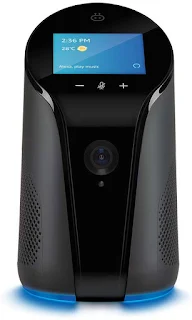
Qubo Smart Indoor Camera is now available to pre-order in India online on Amazon. MRP price for Qubo Smart Indoor Camera in India is Rs 13,490. This item is due to ship on September 28, 2019. This is an AI Enabled, WiFi Home Security camera with Alexa built in. It also doubles up as a Smart Home hub which means you can access, control and remotely manage all Alexa compatible Wi-Fi devices and Qubo range of ZigBee devices

Pre-order Link here.


Features
  • Full HD Camera with Ultra Wide Angle lens
  • Live remote monitoring
  • Built in Speaker and Mic
  • Night Vision
  • Two way talk
  • AI Capabilities
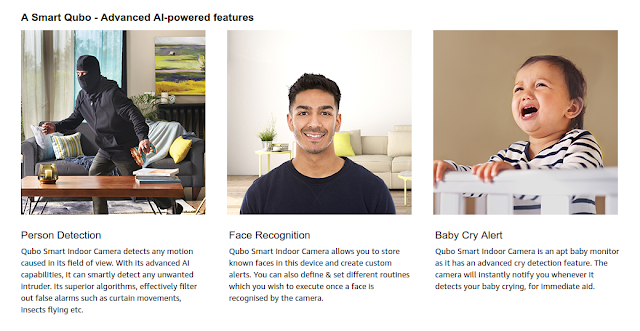
  • Person detection
  • Face recognition
  • Baby Cry Alert
  • Alexa built in
  • Smart home hub
There is a 140 degree wide angle Full HD camera which you can access remotely to see what's going on in your home when you are away at work or vacation. As it comes with a built in speaker and mic, you can have a two way talk with the person / your kids at home as well via Qubo App on your phone. It features two 5W bluetooth speakers which you can connect to any bluetooth device to stream media. It also comes with Night vision mode which automatically switches on at night. With Alexa built in, you can do everything an Alexa smart device can do with the Qubo Smart Indoor Camera. 

"Qubo Smart Indoor Camera allows you to store known faces in this device and create custom alerts. You can also define & set different routines which you wish to execute once a face is recognised by the camera."



Comments

Popular posts from this blog

[ Solved ] SBI ATM 055 Ineligible Transaction Error FIX

Are you experiencing 055 Ineligible Transaction Error every time when you use your SBI ATM Card ? I have a easy FIX for you. What is SBI 055 Ineligible Transaction Error ? It means you are doing a transaction which you or your bank has blocked for security or safety issues. Normally, a user blocks International Usage of a particular Debit / Credit card so that it won't be used by hackers or scammers from other parts of the world. The reason why you are seeing this 055 error in India is probably because your ATM Card's Domestic Usage option is Disabled - either you accidently disabled or your Bank Branch did it. Don't worry. It's easy to fix it. Go to  https://www.onlinesbi.com/  and login with your internet banking username and password. Go to ATM Card Services in the Menu, Select the Card you are have issues and the Click on Change Channel Type . You can see the current status of your Domestic Usage when you click on that. If it's Disabled, simply enab...

[ FIX ] Ubuntu 20.04 Bluetooth doesn't Turn On

I have been using a Logitech Bluetooth keyboard for a while now with my Ubuntu 20.04. Everything worked well without any issues until one day the operating system refused to turn on the Bluetooth. I could toggle Bluetooth On button from the Settings, but it did nothing.  After spending some time Google Searching why my Bluetooth started not working all of a sudden, and after trying a variety of commands to troubleshoot the problem, I finally found a working fix for this issue. Open a Terminal ( Ctrl + Alt + T )  and enter below commands one after another.  sudo rmmod btusb sudo modprobe btusb That's it. Your Bluetooth issue would be now solved.  I can guarantee you this problem is going to pop-up every now and then. So copy the above commands to a text file for future uses. Sometimes, even after entering above commands the bluetooth would refuse to turn on. In such cases, just Suspend the system and then wake up it again and check.

Reduce External Monitor Brightness on Ubuntu 20.04, 21.10

External Monitors are a great addition to any workspace. I have a Full HD Benq one connected with my laptop via HDMI cable to do multi-tasking. What I don't like about this setup is the external screen is still very bright even after setting it to the lowest possible setting via physical buttons present on the monitor. Changing brightness on the Laptop doesn't affect the brightness of the external monitor. However, In Ubuntu, you can adjust the brightness level of any connected monitor by opening up a terminal/command line and entering a few comments. Xrandr is the command we would be using to achieve this. How to change External Monitor Brightness on Ubuntu Linux Open a Terminal ( Ctrl + Alt + T ) Enter the command xrandr -q | grep " connected" and press Enter. Find the external monitor name displayed in this command's output. In my case, it is  HDMI-1 To change the brightness enter this command xrandr --output HDMI-1 --brightness 0.5 and press Ente...