OnePlus 7T Series launching today in India [ Sept 26 ]
OnePlus and Amazon.in have announced OnePlus 7T Series will launch in India today ( Sept 26 ). A regular OP7T and a Pro model as well is expected to be announced during the launch event. OnePlus 7T Mclaren Edition with 12GB ram is expected to launch today as well.
OnePlus TV with 55" QLED 4K is also launching today. The event is scheduled for 7PM tonight. Watch it from here.
OnePlus 7T is an improved variant of the much popular OnePlus 7 Series of mobiles. It will feature the same 90Hz refresh rate AMOLED screen giving a very fluid and satisfying user experience.
The chipset will get a small upgrade though. 7T is powered by the latest and fastest Qualcomm Snapdragon 855+ Octacore processor instead of older, very slightly less powerful SD855.
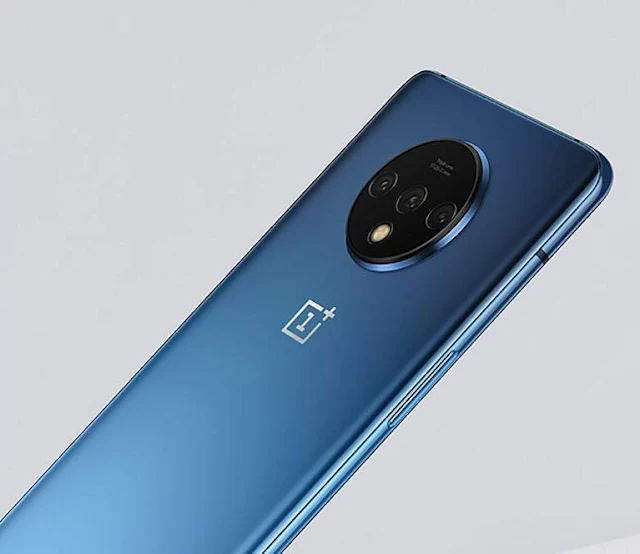
OnePlus 7T / Pro feature Triple cameras at the back similar to Apple iPhone 11 Pro. It comes with that regular, very popular 48MP Sony made sensor as the main camera. Along side, there is an ultra wide angle lens and a telephoto lens for portraits and zoomed in shots.
In the video department, 4K @ 60fps and 1080P slow mo @ 240fps are supported.
Like every other OnePlus phone launched recently, this will also support Warp Charge fast charging tech. Wireless charging is still not available though.
OnePlus has confirmed both OnePlus 7T and 7T Pro will ship with Android 10 based Oxygen OS out of the box. That's good news. Older 7 Series will get the update soon as well.
All in all, OnePlus for sure have put out another popular, good value for money device in OnePlus 7T. MRP price for OnePlus 7T & 7T Pro in India will be announced during the launch event ( Check here )
Specs Highlights
Source : Amazon.in
OnePlus TV with 55" QLED 4K is also launching today. The event is scheduled for 7PM tonight. Watch it from here.
OnePlus 7T is an improved variant of the much popular OnePlus 7 Series of mobiles. It will feature the same 90Hz refresh rate AMOLED screen giving a very fluid and satisfying user experience.
The chipset will get a small upgrade though. 7T is powered by the latest and fastest Qualcomm Snapdragon 855+ Octacore processor instead of older, very slightly less powerful SD855.
OnePlus 7T / Pro feature Triple cameras at the back similar to Apple iPhone 11 Pro. It comes with that regular, very popular 48MP Sony made sensor as the main camera. Along side, there is an ultra wide angle lens and a telephoto lens for portraits and zoomed in shots.
In the video department, 4K @ 60fps and 1080P slow mo @ 240fps are supported.
Like every other OnePlus phone launched recently, this will also support Warp Charge fast charging tech. Wireless charging is still not available though.
OnePlus has confirmed both OnePlus 7T and 7T Pro will ship with Android 10 based Oxygen OS out of the box. That's good news. Older 7 Series will get the update soon as well.
All in all, OnePlus for sure have put out another popular, good value for money device in OnePlus 7T. MRP price for OnePlus 7T & 7T Pro in India will be announced during the launch event ( Check here )
Specs Highlights
- Snapdragon 855 Plus Chipset
- Up to 12GB of ram
- 90hz AMOLED display
- HDR10+ supported
- Triple Cameras
- Android 10 out of the box
- 3800mAh

Source : Amazon.in